Scroll Saw Design Software: A Practical Pattern-Maker
Scroll Saw Design Software: A Practical Pattern-Maker
Most scroll saw patterns die on the software step, long before the wood or the blade get any say. A traced outline gets exported at the wrong resolution and prints as a fuzzy blob. A hand-drawn silhouette leaves interior islands connected by hairlines that snap the moment a blade touches them. A photo gets threshold-converted at midnight and the result has a hundred tiny cuts no reasonable sawyer would attempt.
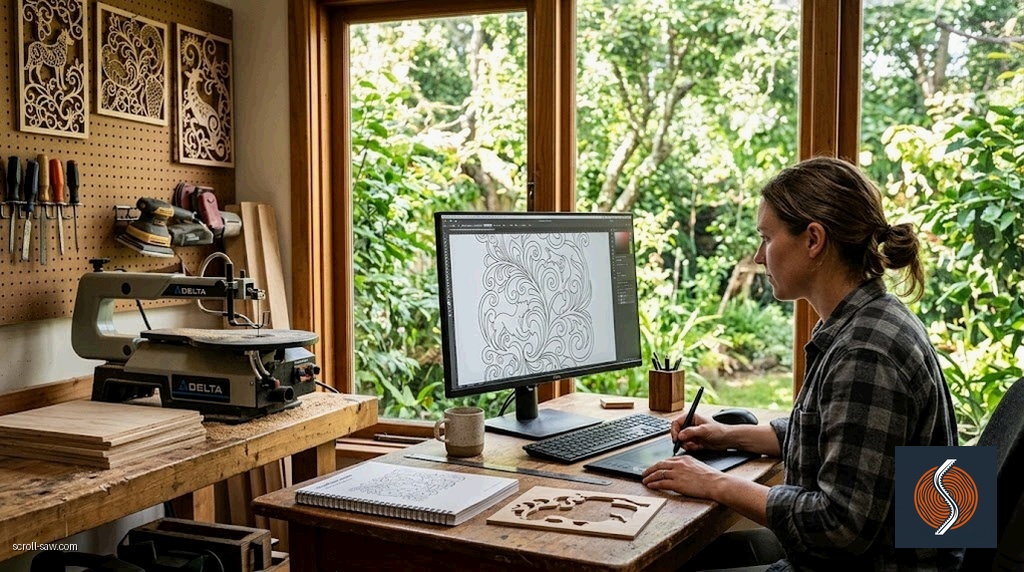
Scroll saw design software is not one tool, it is a workflow. There is a program you draw in, a program you clean up in, and a printing setup that outputs at the size you actually want to cut. Getting the workflow right is worth more than picking the fanciest single application.
Short answer: for most sawyers, Inkscape is the free workhorse that handles 90 percent of pattern work. Add Coreldraw or Adobe Illustrator only if commercial pattern selling is the goal. For photo-to-pattern conversion, PhotoScissors or Rapid Resizer handles the tricky part. Print at 100 percent scale on a laser printer, tile if needed, and stick to Baltic birch as the reference material.
The rest of this guide is what each tool actually does, what it fails at, and how to build a repeatable pattern-making workflow that produces cuttable files.
What scroll saw pattern software actually needs to do
A pattern is a printed sheet, usually black lines on white paper, that gets glued to wood so a scroll saw can follow the lines. The software job is smaller than it sounds. It has to draw or convert lines. It has to keep every closed shape structurally sound so the wood does not fall apart mid-cut. It has to print at true scale.
Anything beyond that is convenience. Layered fills, color coding, text-on-path curves, they help but they are not the point.
The two failure modes to avoid: hairlines that print thinner than a blade kerf, and disconnected islands that need bridges added by hand. Any tool worth using lets you set stroke weight and add bridges without a fight.
The free vector option: Inkscape
Inkscape is the tool most working scroll sawyers use once they figure out it exists. It is free, actively maintained, and produces SVG files that print at exact scale.
What Inkscape does well: bezier curves for smooth pattern lines, path operations for combining or subtracting shapes (essential for adding bridges to fretwork), text-to-path for lettering patterns, and node editing for cleaning up traced outlines. The Trace Bitmap function converts a black-and-white image to editable vectors in one step.
What Inkscape does poorly: photo processing (use PhotoScissors first), and print tiling for oversize patterns (use Adobe Reader or PosteRazor after export).
The workflow for a fresh pattern in Inkscape looks like this. Open the reference image at actual size. Trace over it on a new layer using the pen tool. Set every stroke to 0.5 to 1 mm, which prints as a line thick enough to see through spray adhesive. Use path union to weld overlapping regions. Use path difference to cut interior windows. Save as SVG for editing, PDF for printing.
Most patterns need less than an hour in Inkscape once the workflow is muscle memory.
The paid vector option: Adobe Illustrator and Coreldraw
Adobe Illustrator and Coreldraw are the professional-tier tools. Neither does anything Inkscape cannot, but both do it faster and with fewer crashes on complex files.
Illustrator’s Image Trace is more forgiving than Inkscape’s on photographs and hand-drawn scans. Coreldraw’s PowerTRACE handles low-resolution reference images better than either.
Both are subscription products aimed at graphic designers. The scroll saw case for them is thin unless you are also doing commercial work, selling pattern packs, or already own a copy from another project.
If a subscription is not an option, Affinity Designer is a one-time-purchase alternative that reads Illustrator files and handles pattern work well.
Dedicated pattern software: MakerCase, Boxes.py, and the niche tools
For specific pattern categories, dedicated tools beat general vector software.
MakerCase generates finger-joint box patterns as SVGs. Enter dimensions, material thickness, and joint type. Export. Cut. This is a much faster path than drawing the same box in Inkscape.
Boxes.py does the same for a wider range of boxes, drawers, and enclosures. Free and open source. Runs in a browser.
For gears, Gear Generator or the built-in gear tool in Inkscape (Extensions, Render, Gears) produces accurate involute gear profiles that cut cleanly. Trying to draw a gear tooth by hand in any general vector tool is a waste of an evening.
For Celtic knots, Knots3D or the free Celtic knot Inkscape extension generates the interweaving pattern automatically.
For lettering, Fontself Maker converts hand-lettered art to installable fonts you can then set on a path. This matters most if you sell personalized name patterns.
Photo-to-pattern conversion
The hardest single task in pattern making is converting a photograph into a cuttable line drawing. Portraits are worst.
The conservative workflow: use PhotoScissors or Adobe Photoshop to remove the background cleanly. Convert to grayscale. Apply a threshold filter that reduces the image to two colors. Bring the result into Inkscape and Trace Bitmap. Manually add bridges to connect isolated islands, especially highlights inside eyes and hair.
A faster workflow: use Rapid Resizer’s online pattern maker, which is built specifically for scroll saw and craft use. It handles threshold, tracing, and bridge suggestions in one pass. Not free but produces usable output on the first try more often than the DIY workflow.
Do not skip the bridge step. A traced photograph left as-is drops entire regions of wood the moment the outside cut closes. Bridges are the difference between a pattern and a lawsuit against physics.
Printing scroll saw patterns at true scale
The software is only half the job. The printer setup finishes it.
Use a laser printer if one is available. Inkjet ink can bleed under spray adhesive. Set the print scale to 100 percent or Actual Size. Turn off any Fit to Page option. If the pattern is oversize, tile across multiple sheets using Adobe Reader’s Poster mode or PosteRazor. Tape the tiles together on a light surface, aligning register marks.
Check size with a ruler before applying adhesive. A pattern that is off by 4 percent will still look right on the page but will produce a project that is measurably wrong.
Apply the pattern with a light coat of 3M Super 77 spray adhesive over blue painter’s tape on the wood. The tape peels the pattern off cleanly when the cut is done. Skip the tape and paper fibers stay welded to the surface.
File formats worth caring about
| Format | Use for | Avoid for |
| SVG | Editing, master pattern files | Direct printing on old drivers |
| Printing, sharing, tiling | Long-term editing | |
| DXF | CNC and laser workflows | Home printer output |
| PNG | Web thumbnails only | Anything that gets cut |
| JPG | Reference photos coming in | Final patterns going out |
Common mistakes in pattern software
The first is designing at the wrong scale. Draw at true final size from the beginning. Scaling up a small design later blurs lines that read fine on screen but print rough.
The second is leaving open paths where closed shapes belong. An open path prints as a line but cannot be filled or unioned. Close every path before exporting.
The third is exporting at 72 DPI because that is the default in most vector tools. Print output needs 300 DPI minimum. In Inkscape, set DPI at export in the PNG or PDF dialog, not the file properties.
The fourth is skipping the print-a-test-page step. Print the pattern on plain paper first. Measure a known dimension with a ruler. If it is off, fix the scale before applying adhesive.
Software choice against your actual workflow
The honest recommendation depends on what you are doing.
Cutting occasional patterns from other people’s designs, Steve Good downloads, magazine inserts, purchased pattern packs, you do not need design software at all. A PDF reader that prints at Actual Size covers the whole job.
Modifying existing patterns, resizing, mirroring, combining, use Inkscape. Free, fast enough to learn in an afternoon.
Drawing original patterns from photos or sketches, Inkscape plus PhotoScissors covers it. Add Rapid Resizer if photo work is frequent.
Selling commercial patterns, Adobe Illustrator or Coreldraw. The subscription earns itself back on file portability and support alone.
FAQ
Is Inkscape really enough for professional patterns?
Yes, for the design work itself. Where Inkscape falls short is on complex color separations or CMYK-accurate output, neither of which matters for a scroll saw pattern printed in black and white.
Do I need a graphics tablet?
A mouse is fine for most pattern work. A tablet only pays off if you are doing extensive freehand pattern drawing rather than tracing or vector editing.
Can I use Microsoft Word or PowerPoint to make patterns?
Only for the simplest silhouette patterns. Anything with interior cutouts or fine detail will fight you at every step. Use a real vector tool.
What resolution should I scan a hand-drawn pattern at?
600 DPI, grayscale. Higher makes the file huge with no benefit. Lower loses fine lines when you trace.
How do I add bridges to a pattern I am designing?
Draw a small rectangle across the line you want to bridge, then use path difference to cut the pattern at that point. The gap left is your bridge. Two to four millimeters wide is standard.
Should I flip patterns before printing?
Only if you are cutting from the back face of the wood, which some sawyers do to hide adhesive residue. Otherwise print normally.
Can AI image generators produce cuttable patterns?
Not yet, in any reliable way. Output looks pattern-like on screen but almost always contains hairlines, disconnected islands, and structurally impossible details. You would spend more time fixing it than drawing from scratch.
References
-
Inkscape official documentation, path operations and trace bitmap
-
Steve Good, Scrollsaw Workshop tutorials on pattern preparation
-
Rapid Resizer help center on scroll saw pattern generation
-
Boxes.py open source documentation, parametric box generation