Scroll Saw Pattern Making Software: Workflow and Tool Selection
Scroll Saw Pattern Making Software: Workflow and Tool Selection
A scroll saw pattern goes through three phases before it becomes wood shapes. Design, in software. Print, on paper. Cut, on the saw. Software failures show up on the saw, not in the design tool, which is what makes pattern making software the least visible and most costly part of the workflow to get wrong.
A pattern that looked fine on the screen falls apart on the wood because the software let a hairline stroke slip through, or exported at 72 DPI instead of 300, or accepted an interior island without flagging it. These failures happen after the software has moved on and the wood is already committed.
Short answer: choose software based on your project mix. Occasional pattern editing, use Inkscape. Original design work, use Inkscape plus Rapid Resizer for photos. Commercial pattern production, add Adobe Illustrator or Coreldraw. Box work exclusively, use MakerCase or Boxes.py. Learn one tool deeply rather than three tools shallowly.
The rest of this guide is how to build a workflow that catches software errors before they become wood errors.
Project categories and their software needs
Different scroll saw projects have different software demands.
Modifying existing patterns. You buy or download a pattern and need to resize it, mirror it, or combine two patterns. Requires: PDF or SVG editing. Tools: Inkscape covers it entirely.
Photo-to-portrait patterns. You have a photograph and want a scroll saw pattern of the subject. Requires: threshold conversion, edge detection, bridge insertion. Tools: PhotoScissors or Adobe Photoshop for prep, then Inkscape or Rapid Resizer for tracing and bridging.
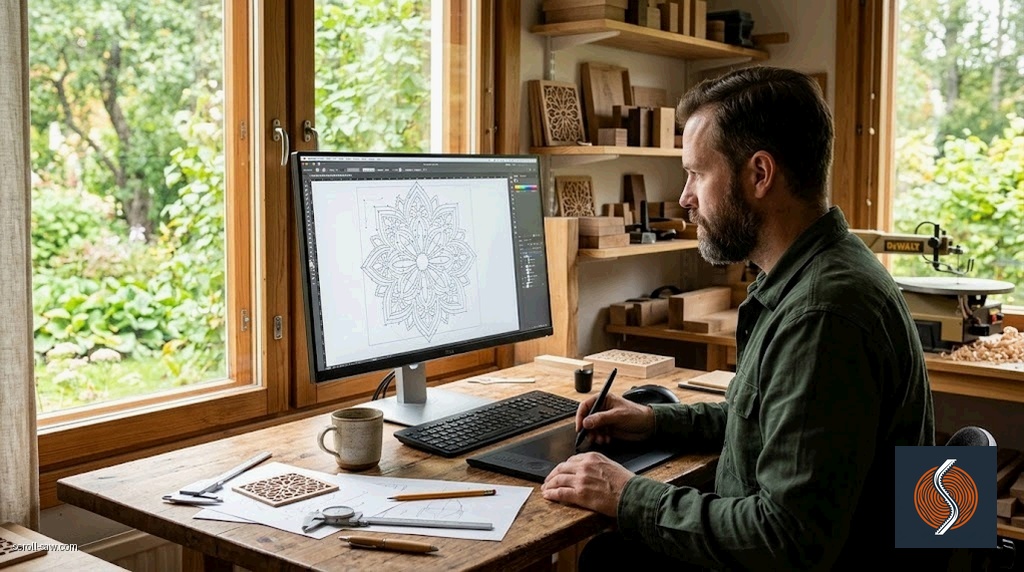
Original silhouette patterns. You draw the pattern from scratch or from a rough reference. Requires: pen tool, path operations, node editing. Tools: Inkscape, Illustrator, Coreldraw, or Affinity Designer.
Parametric boxes and gears. You need a box of specific dimensions or a gear of specific tooth count. Requires: parametric generation with parameter input. Tools: MakerCase for boxes, Boxes.py for more variety, Gear Generator or Inkscape gear extension for gears.
Lettering and monogram patterns. You need text-based patterns with specific fonts. Requires: text-on-path, font management, bridge insertion. Tools: Inkscape or Illustrator with reliable font library.
Commercial pattern production. You design and sell patterns at volume. Requires: fast throughput, file format flexibility, portable file sharing. Tools: Adobe Illustrator or Coreldraw earn their subscription here.
Match tools to categories. Software that does everything mediocre serves no one.
What Inkscape actually handles
Inkscape is the anchor tool for scroll saw pattern making software discussions because it covers most needs at no cost.
Inkscape reads and writes SVG, PDF, and EPS. It handles bezier curves at any complexity. It has a working Trace Bitmap function for converting scanned or photographed line art. It has extensions for gears, boxes, and specialty shapes. It supports text-on-path.
Where Inkscape struggles: photographs (do prep in Photoshop or PhotoScissors first), and very large complex files (over 500 objects can slow response).
Inkscape’s learning curve is real. Expect two to five hours of tutorials to reach comfortable working speed. Its documentation is comprehensive but scattered across the official docs, a community wiki, and various YouTube channels.
Once learned, Inkscape handles the vast majority of scroll saw pattern work without needing a paid alternative.
Paid alternatives and when they matter
Adobe Illustrator: strongest for commercial pattern production and clients who need proprietary Illustrator files. Better bitmap tracing than Inkscape on low-quality reference images. Subscription only.
Coreldraw: strongest for detailed vector work in commercial print production. Handles very large files better than Inkscape. Perpetual license option available (unusual in 2020s software).
Affinity Designer: one-time purchase, reads Illustrator files, handles most Illustrator tasks. Best value if you want a paid tool without a subscription.
Adobe Photoshop: not a pattern tool by itself, but essential for photo prep before pattern conversion. Alternatives: GIMP (free, capable, less polished), Affinity Photo (one-time purchase, streamlined).
Rapid Resizer: web-based, subscription. Specifically for craft and scroll saw pattern conversion from photos. The only paid tool that has scroll saw work as its primary use case.
None of these strictly outperforms Inkscape for scroll saw work alone. They earn their cost only when other benefits matter: file format compatibility, speed, integration with other design work.
Photo-to-pattern workflow
Portrait or subject-based scroll saw patterns start from photographs and end in cuttable line art.
Step one, background removal. Use PhotoScissors, Adobe Photoshop, or GIMP to isolate the subject from its background.
Step two, grayscale conversion. Convert the color image to grayscale to prepare for threshold work.
Step three, threshold. Apply a threshold filter that reduces the grayscale image to pure black and white. This is where subjective judgment matters. Lower threshold values include more midtones as black, producing more detail but more islands. Higher threshold values produce cleaner but less detailed output.
Step four, vectorization. Import the threshold image into Inkscape and use Trace Bitmap to convert to editable vectors.
Step five, cleanup. Delete stray dots and specks. Simplify overly complex paths.
Step six, bridge insertion. Manually add bridges connecting floating islands (highlights inside eyes, gaps inside hair strands) to the main pattern.
Step seven, line weight normalization. Set every stroke to a consistent 0.5 to 1 mm weight.
Step eight, scale check. Set the pattern to intended final size, then print a test at 100 percent.
Rapid Resizer collapses steps two through six into one guided workflow, at the cost of a subscription and less manual control.
Vector versus bitmap file formats
Pattern files exist in two families.
Vector formats (SVG, EPS, AI, DXF, PDF with vector content) store patterns as mathematical curves. They scale without quality loss. They edit cleanly. They print at any DPI. Use vector formats for pattern storage, editing, and final printing.
Bitmap formats (PNG, JPG, TIFF) store patterns as arrays of pixels. They lose quality when scaled up. They cannot be edited as line work without tracing. They print at fixed resolution. Use bitmap formats only for reference photos going into the workflow, never for final pattern output.
A pattern shipped as JPG is a warning sign. Even if the JPG looks fine, it usually indicates a designer who does not understand the vector workflow.
Printing patterns from software
The printer setup is where software decisions turn into physical output.
Use a laser printer. Inkjet ink bleeds under 3M Super 77 spray adhesive. Laser toner does not.
Set the print scale to 100 percent or actual size. Every printer software has this option. Look for it.
Disable fit-to-page. Fit-to-page silently rescales patterns to fill the paper, invalidating the design scale.
For oversize patterns, tile across multiple sheets. Adobe Reader’s Poster mode handles PDF tiling directly. For SVG, use PosteRazor.
Measure a known dimension on the printed page with a ruler. Any scale error greater than 1 percent will show up in the finished piece.
Applying software output to the wood
Once printed, patterns transfer to wood the same way regardless of origin.
Apply blue painter’s tape to the wood face in a smooth continuous layer.
Apply a light coat of spray adhesive to the back of the pattern sheet.
Press the pattern onto the taped wood. Smooth with a hand or brayer.
Cut through both the pattern paper and the tape simultaneously.
After cutting, peel the tape and pattern together. The tape brings the paper off cleanly with no residue on the wood.
Skipping the tape step is where beginners struggle with residue removal after cutting.
Common software workflow failures
Pattern printed at wrong scale. Cause: fit-to-page enabled or DPI mismatch. Fix: explicit 100 percent scale, measure printed output.
Line disappears under adhesive. Cause: stroke weight below 0.5 mm. Fix: normalize all strokes to 0.5 to 1 mm before export.
Pattern shows lines that were meant to be construction guides. Cause: hidden layers not toggled off before export. Fix: check layer visibility before every export.
Vector artifact from Trace Bitmap creates thousands of tiny nodes. Cause: input image had noise or was low resolution. Fix: clean input before tracing, or apply Path Simplify after tracing.
Pattern edits do not carry through to print. Cause: exporting the wrong file (source SVG instead of edited version). Fix: use clear file naming and version control.
FAQ
Can I design patterns entirely in Microsoft Word or PowerPoint?
Only the simplest silhouettes. Anything with curves, interior details, or precise dimensions will fight you. Real vector software is worth learning.
Is Adobe Illustrator worth the subscription for hobby scroll saw work?
No. Inkscape covers hobby needs. Illustrator only earns its subscription for commercial or professional design work.
How steep is the Inkscape learning curve?
Five to ten hours of guided tutorials to become productive. YouTube channels like Logos By Nick and Inkscape’s own tutorial series cover the essentials.
What is the fastest workflow for a one-off pattern?
Draw on paper, scan at 600 DPI grayscale, import into Inkscape, Trace Bitmap, clean up, normalize strokes, export PDF, print. Twenty minutes for a simple silhouette.
Can I use my iPad for scroll saw pattern work?
Affinity Designer for iPad handles most tasks. Procreate is not a vector tool and will not produce clean pattern output.
Do I need internet access to design patterns?
Inkscape, Illustrator, and Affinity Designer all work offline. Rapid Resizer and Boxes.py need internet for their web-based versions.
How do I share pattern files with someone who does not have my software?
Export as PDF. Every operating system opens PDFs. Every printer prints PDFs. PDF preserves vector data for future editing if the recipient has vector software.
References
-
Inkscape official documentation, print output and export settings
-
Adobe Help Center, Illustrator export and PDF preservation
-
Rapid Resizer support documentation for scroll saw pattern conversion
-
Steve Good, Scrollsaw Workshop tutorials on pattern preparation